
Have you ever wondered why developers, IT managers, or cybersecurity experts still use the Command Prompt when there are advanced GUIs? The answer is simple — speed, precision, and control. Knowing how to change the directory in Command Prompt is one of the most fundamental yet powerful skills for anyone working in Windows environments.
Whether you’re running scripts, managing files, or navigating system paths, mastering directory changes in CMD is essential. This guide walks you through the process, from basic commands to advanced techniques, helping you navigate your file system like a pro.
Understanding Command Prompt and Directories
Before we dive into how to change directories, let’s understand what the Command Prompt does.
Command Prompt (CMD) is a built-in Windows command-line interface that allows users to execute text-based commands. Instead of clicking through folders, you can directly manipulate files, launch programs, or configure networks using concise commands.
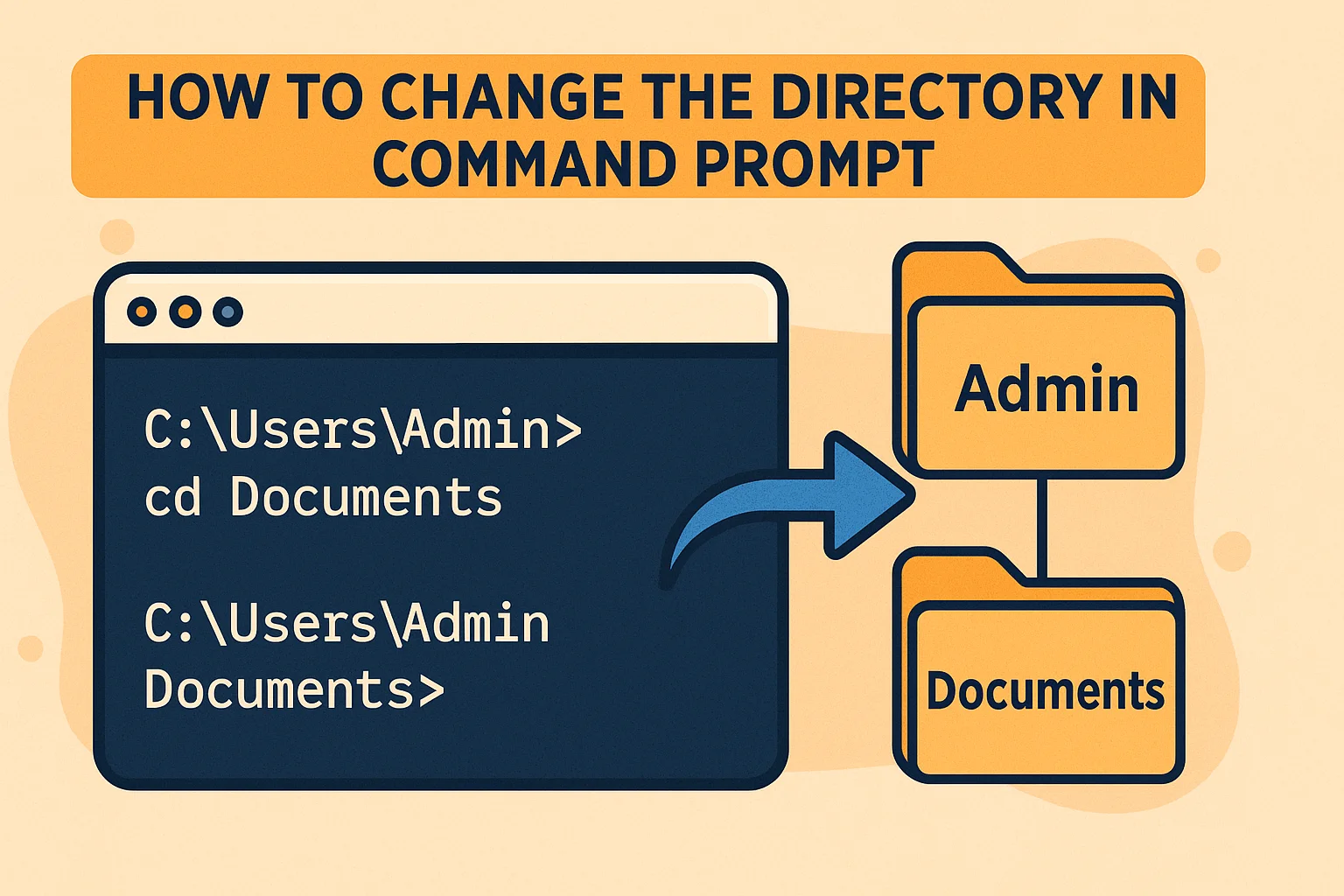
A directory in CMD refers to a folder path where files and subfolders reside. The directory path defines your current working location—so changing it means telling CMD where you want to operate.
For example:
This means CMD is currently operating inside the Admin folder under Users.

Why Learn to Change Directories in CMD?
Learning how to change the directory in Command Prompt offers several practical benefits:
-
✅ Efficiency: Navigate file structures faster than using File Explorer.
-
Security: Execute administrative tasks with elevated privileges.
-
⚙️ Automation: Essential for running scripts, batch files, and development projects.
-
Troubleshooting: Many system fixes start with directory-level commands.
If you work in cybersecurity or IT, you’ll often use directory navigation for log analysis, permission audits, or executing secure scripts.
The Command to Change Directories: cd
The cd (Change Directory) command is the key to moving between folders in CMD.
Syntax:
Examples:
-
To move into a folder:
-
To go up one level (parent directory):
-
To switch to another drive:
-
To navigate to a specific path:
Step-by-Step: How to Change the Directory in Command Prompt
Let’s walk through it step-by-step, starting with basic to advanced techniques.
Step 1: Open Command Prompt
You can open Command Prompt in several ways:
-
Press Windows + R, type
cmd, and hit Enter. -
Search for Command Prompt in the Windows Start menu.
-
Right-click and choose Run as Administrator (for system-level directories).
Step 2: Check Your Current Directory
When CMD opens, it defaults to a specific path (e.g., your user folder). To confirm where you are:
This displays your current working directory.
Step 3: Navigate to a Folder in the Same Directory
If you’re already inside a folder and want to move into a subfolder:
Example:
Now CMD changes to:
Step 4: Move to a Different Drive
If you’re on drive C and want to switch to drive D:
Then, to navigate within that drive:
Step 5: Move Up or Backward
To go back one directory level:
To go back multiple levels:
To return to the root directory:
Step 6: Open Directories with Spaces in the Name
Folder names with spaces must be enclosed in quotation marks. For example:
Without quotes, CMD will throw an error.
Step 7: Combine Commands for Efficiency
You can combine commands to execute multiple navigation steps:
The above command navigates to the folder and lists its contents using the dir command.
Advanced Directory Navigation Techniques
Professionals often need to navigate complex file systems quickly. Here are advanced CMD techniques.
1. Use Environment Variables
Windows uses environment variables for quick navigation. For example:
Takes you directly to your user directory:
Other examples:
-
%HOMEPATH%→ Home directory -
%SYSTEMROOT%→ Windows installation folder -
%TEMP%→ Temporary files directory
2. Combine cd with Wildcards
You can use wildcards (*) to navigate to folders matching a pattern:
This takes you to C:\Program Files if it matches the first part of the name.
3. Change Directory Using Variables
Set a shortcut path using set:
This is useful for repetitive tasks, especially in cybersecurity or scripting.
4. Use Pushd and Popd Commands
For multi-tasking, pushd and popd are superior to cd.
Example:
After checking logs, go back:
5. Run CMD Commands in a Specific Directory
You can execute commands directly in a directory without manually navigating:
Here, /d allows switching drives, and && executes the batch file immediately.
Common Errors and Troubleshooting Tips
When changing directories, you may encounter some common issues:
| Error | Cause | Solution |
|---|---|---|
| The system cannot find the path specified | Mistyped folder name or wrong drive | Double-check spelling and path |
| Access Denied | Insufficient privileges | Run CMD as Administrator |
| Invalid directory name | Missing quotes around spaced folder names | Use quotes like "C:\Program Files" |
| Drive not found | Trying to access a non-existent drive | Verify drive letter or mount status |
Practical Use Cases for Professionals
For cybersecurity professionals and IT managers, directory navigation is more than just convenience — it’s a critical operational skill.
1. Security Audits
Change directories to analyze system logs:
2. Automation and Scripting
Batch scripts rely on accurate directory paths:
3. Network Administration
Navigate to network drives:
4. Forensics and Threat Analysis
Access system and user directories quickly to trace malicious activity.
Keyboard Shortcuts to Enhance Productivity
-
Tab Key: Auto-completes directory names.
-
Ctrl + C: Cancels a running command.
-
Arrow Keys: Cycle through previous commands.
-
F7: View command history.
These shortcuts make directory navigation in CMD faster and error-free.
Benefits of Mastering CMD Navigation
-
Enhanced control over file systems.
-
Faster workflow for development or network configuration.
-
Improved accuracy during automation or system tasks.
-
Critical for cybersecurity incident response.
Even though PowerShell and GUI tools exist, Command Prompt remains a reliable and lightweight tool for quick, command-based operations.
Actionable Tips for Professionals
-
Use aliases or environment variables to shorten common paths.
-
Always run CMD as administrator when accessing system directories.
-
Combine CMD with batch scripts or PowerShell for efficiency.
-
Use relative paths in team scripts for better compatibility.
-
Regularly clear temporary folders via CMD to enhance performance.
Conclusion
Learning how to change the directory in Command Prompt is more than a beginner exercise—it’s a cornerstone of efficient system management and cybersecurity operations. Once you master it, you’ll navigate Windows environments faster, automate workflows, and troubleshoot systems with confidence.
Whether you’re a network engineer, cybersecurity expert, or business leader overseeing IT infrastructure, understanding directory navigation in CMD saves time and prevents costly errors.
Combine cd with scripting and automation tools for maximum efficiency. Start today—open your CMD, run a few directory changes, and see how powerful the command line can be.
Frequently Asked Questions (FAQ)
Q1: What is the command to change the directory in Command Prompt?
Use the cd command followed by the path, for example:
Q2: How do I go back one folder in CMD?
Type cd .. and press Enter.
Q3: How do I switch drives in CMD?
Simply type the drive letter followed by a colon, e.g., D:.
Q4: Why does CMD say “Access Denied”?
You may need to run CMD as Administrator to access protected directories.
Q5: Can I change directories with spaces in the name?
Yes, wrap the directory path in quotes:
Q6: What’s the difference between cd and pushd?cd changes the directory permanently; pushd temporarily switches directories and allows you to return using popd.
Q7: How do I open a directory in CMD directly?
Right-click the folder in File Explorer → Select “Open in Terminal”.
Q8: Does this work on all Windows versions?
Yes, cd works across all modern Windows versions, including Windows 10 and 11.